
Mac Storage Analyzer
Analyze disk space and find hidden junk files

Overview
Deep Scan is DiskCleanKit's most comprehensive analysis tool. While Quick Clean focuses on obviously safe files for rapid cleanup, Deep Scan examines your entire system to uncover every potential space-saving opportunity.
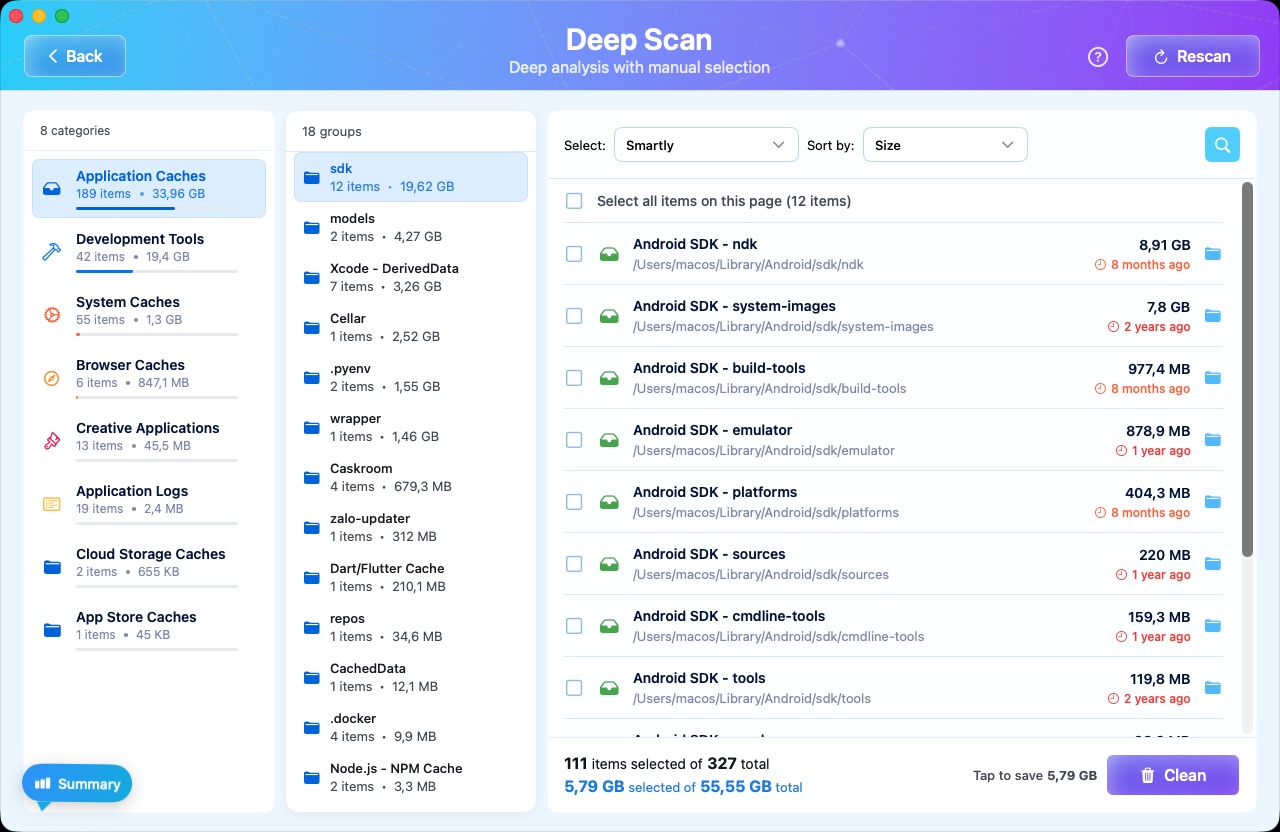
This thorough scanning mode uses a three-panel interface that gives you complete visibility and control over what gets cleaned. The left panel shows all scan categories, the middle panel displays files within each category, and the right panel provides detailed file information.
Deep Scan is ideal when you need maximum space recovery, want to understand exactly what's consuming your disk, or haven't cleaned your Mac in a while. It examines system caches, application data, logs, temporary files, mail attachments, browser data, and much more.
When to Use Deep Scan
- Your Mac is running low on storage
- You haven't cleaned in several weeks or months
- You want detailed control over what gets deleted
- You need to find specific types of files
- You want to understand your disk usage patterns
Key Benefits
Comprehensive Analysis
Scans every corner of your system including hidden folders, application support files, and system data.
Three-Panel Interface
View categories, files, and details side-by-side for complete visibility and control over your cleanup.
Maximum Space Recovery
Find space-wasting files that Quick Clean might skip, recovering the maximum possible disk space.
Detailed File Information
See file sizes, locations, last accessed dates, and safe-to-delete status for every item found.
Category Filtering
Focus on specific file types - system junk, caches, logs, mail attachments, browser data, and more.
Preview Before Delete
Preview files directly in the app before deciding to delete them. Never accidentally remove important files.
How It Works
Select Deep Scan
From the DiskCleanKit dashboard, click on Deep Scan to begin a comprehensive system analysis.
Choose Scan Categories
Select which categories to scan - System Junk, Application Caches, Logs, Mail, Browser Data, and more. You can scan all or focus on specific areas.
Wait for Analysis
Deep Scan thoroughly analyzes your system. This may take a few minutes depending on your disk size and the amount of data to scan.
Review Three-Panel Results
Browse results in the three-panel interface. Left panel shows categories with sizes, middle panel lists files, and right panel shows file details.
Select and Clean
Select files or entire categories to clean. Review your selections and click Clean to safely remove them and reclaim your disk space.
See It in Action

Pro Tips
Run Deep Scan monthly for thorough maintenance, and Quick Clean weekly for routine cleanup.
Use the category filter to focus on specific file types when you know what you're looking for.
Check the 'Last Accessed' date in the details panel - files not accessed in months are usually safe to delete.
Enable 'Show in Finder' to verify file locations before deleting if you're unsure about a file.
Deep Scan works great with external drives too - use Disk Manager to select the drive first.
Combine Deep Scan with Time Machine Snapshots cleanup for maximum space recovery.
Try Mac Storage Analyzer Today
Download DiskCleanKit and experience the power of mac storage analyzer for yourself.