
Complete Guide to DiskCleanKit Widgets: Disk Space, RAM & Liquid Glass Mode
What's New in Widgets
DiskCleanKit now offers two dedicated widget types - Disk Space widgets for storage monitoring and RAM Status widgets for memory tracking. Plus, our widgets fully support Liquid Glass mode on macOS Sequoia for beautiful translucent effects.
Widget Types Available
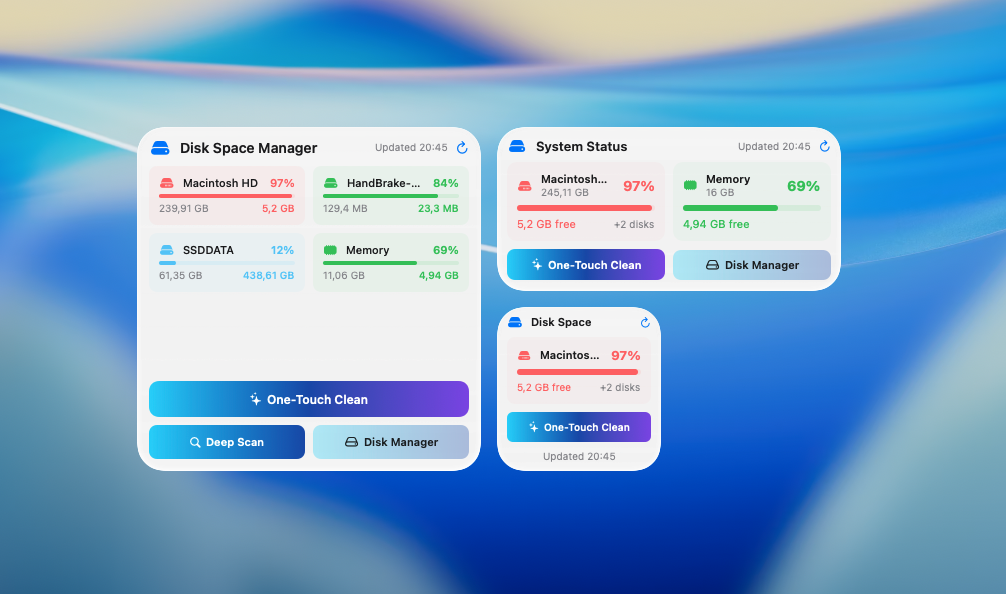
Disk Space Widgets
Monitor storage usage across all your drives:
- Visual storage breakdown - See what's consuming space at a glance
- All drives support - System drive and external drives
- Multiple sizes - Small, medium, and large options
- One-click access - Launch DiskCleanKit instantly
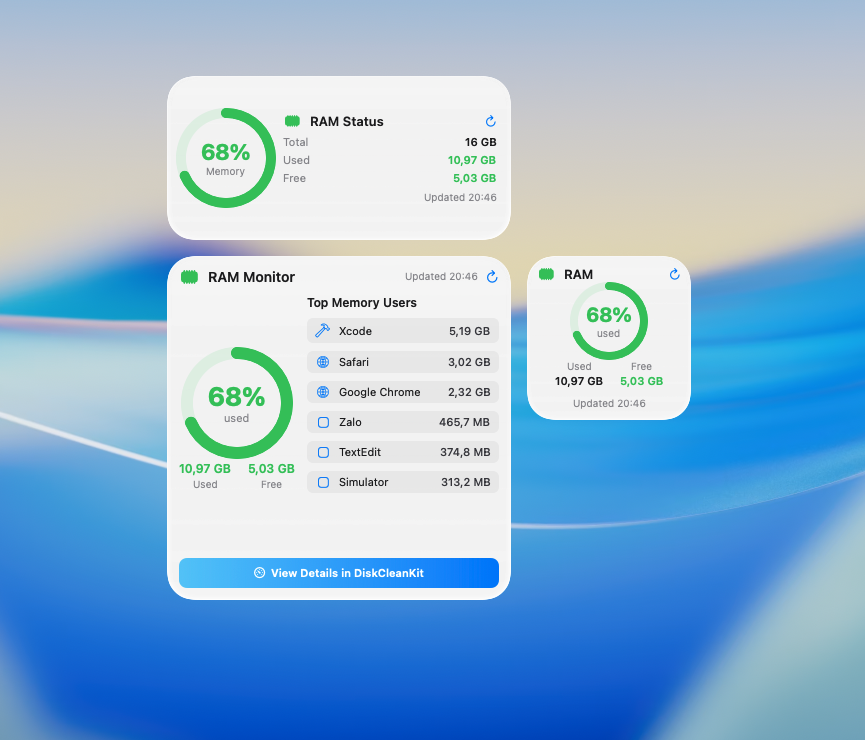
RAM Status Widgets (New in v5.0)
Monitor your Mac's memory:
- Top processes - See which apps are using the most memory
- Memory usage - Current RAM usage at a glance
- Multiple sizes - Choose the level of detail you need
Adding Desktop Widgets
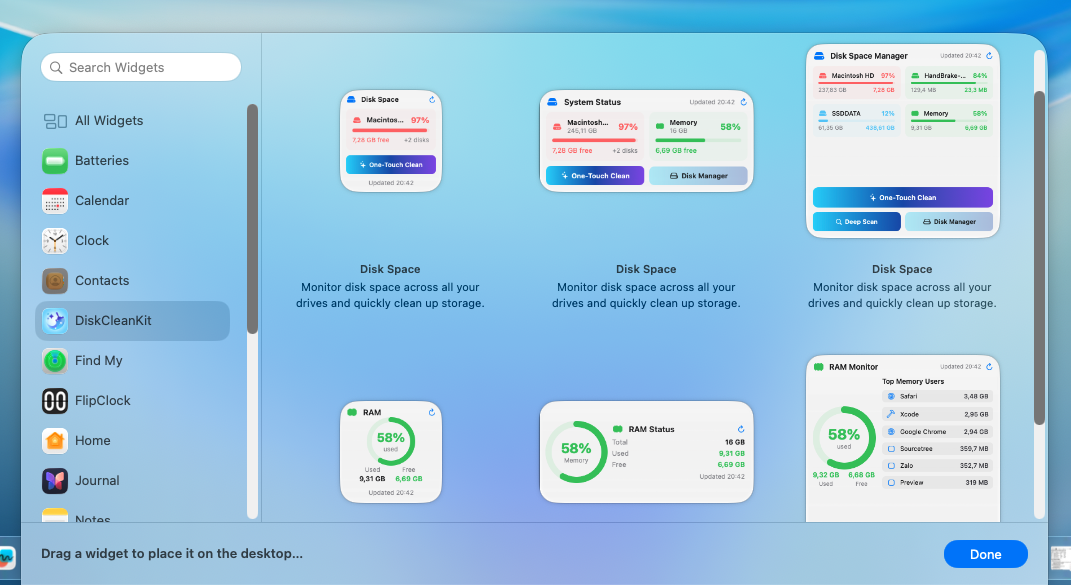
Step 1: Open Widget Gallery
Right-click anywhere on your desktop and select Edit Widgets to open the macOS widget gallery.
Step 2: Find DiskCleanKit Widgets
Search for "DiskCleanKit" in the gallery. You'll see both Disk Space and RAM Status widget categories.

Step 3: Choose Your Widgets
Disk Space Widget Sizes:
- Small - Storage percentage and available space
- Medium - Visual chart with category breakdown
- Large - Complete storage visualization with all categories
RAM Widget Sizes:
- Small - Memory usage percentage
- Medium - RAM usage with top processes
- Large - Full details including top memory-consuming processes
Step 4: Position Your Widgets
Drag widgets to your desktop and arrange them. Click Done when finished. Mix Disk Space and RAM widgets for complete system visibility.
Menu Bar Widget
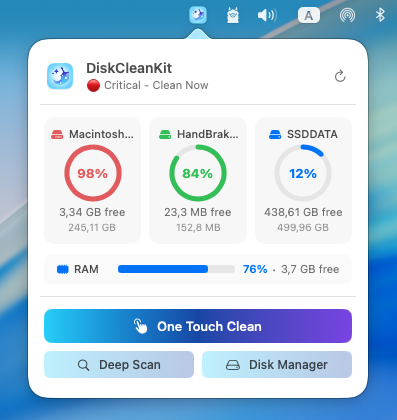
The menu bar widget provides instant access to storage and RAM information without taking up desktop space.
Features
- Click to see storage summary for all drives
- RAM usage overview
- Quick access to One Touch Clean
- Open full app with one click
Enable/Disable
The menu bar widget is enabled by default. To hide it:
- Open DiskCleanKit preferences
- Toggle the Menu Bar widget option
Liquid Glass Mode
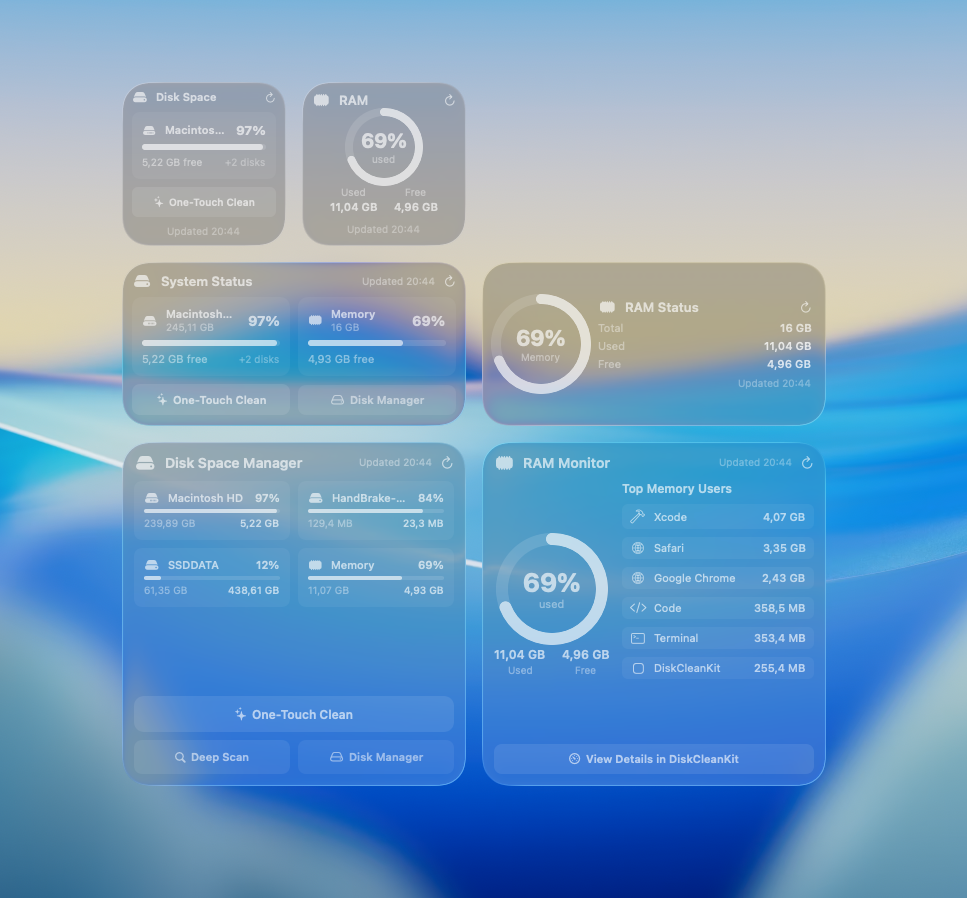
DiskCleanKit widgets support the beautiful Liquid Glass effect:
- Translucent blur effect - Widgets blend beautifully with your wallpaper
- Automatic adaptation - Works with Light and Dark mode
- Seamless integration - Widgets become part of your desktop aesthetic
- No configuration needed - Enabled automatically
The Liquid Glass effect creates stunning visuals while keeping information readable. Your widgets blend naturally with your desktop rather than floating on top of it.
Using Widget Actions
Quick Actions Available
- Refresh - Update storage and RAM information
- Clean - Launch One Touch Clean mode
- Disk Manager - Open storage management directly
- Full App - Launch the complete DiskCleanKit interface
One Touch Clean from Widget
1. Click the Clean button on your widget
2. DiskCleanKit performs a quick safe clean
3. Widget updates to show newly available space

Tips for Power Users
- Use both widget types - Disk Space + RAM widgets give complete system visibility
- Large widgets for details - RAM widget shows top processes, Disk widget shows all categories
- Menu bar for clean desktops - All the info without desktop clutter
Troubleshooting
Widget Not Updating
- Tap the Refresh button on the widget
- Check if DiskCleanKit has necessary permissions
- Try removing and re-adding the widget
Liquid Glass Not Working
- Check System Settings → Appearance for transparency settings
- Make sure "Reduce transparency" is not enabled
- Restart your Mac if needed
Widget Not in Gallery
- Ensure you have DiskCleanKit v5.0 or later
- Requires macOS Sonoma or later for desktop widgets
- Restart your Mac if widgets don't appear
Summary
DiskCleanKit's widget system gives you complete visibility into your Mac's storage and memory:
| Widget Type | What It Shows | Best For |
|---|---|---|
| Disk Space | Storage usage, breakdown, all drives | Monitoring available space |
| RAM Status | Memory usage, top processes | Identifying memory hogs |
| Menu Bar | Quick overview, one-click access | Clean desktop preference |
Set them up once and enjoy continuous visibility into your system's health with beautiful Liquid Glass effects!
Ready to Clean Your Mac?
Try DiskCleanKit today and reclaim your disk space. One Touch Clean, Widgets, Disk Manager, and more.