
Master Spotlight & Siri on Mac: Your Complete Productivity Guide
What is Spotlight?
Spotlight is macOS's powerful built-in search feature that lets you instantly find anything on your Mac — files, applications, emails, contacts, and even perform calculations or conversions. It's one of the most underutilized productivity tools on your Mac.
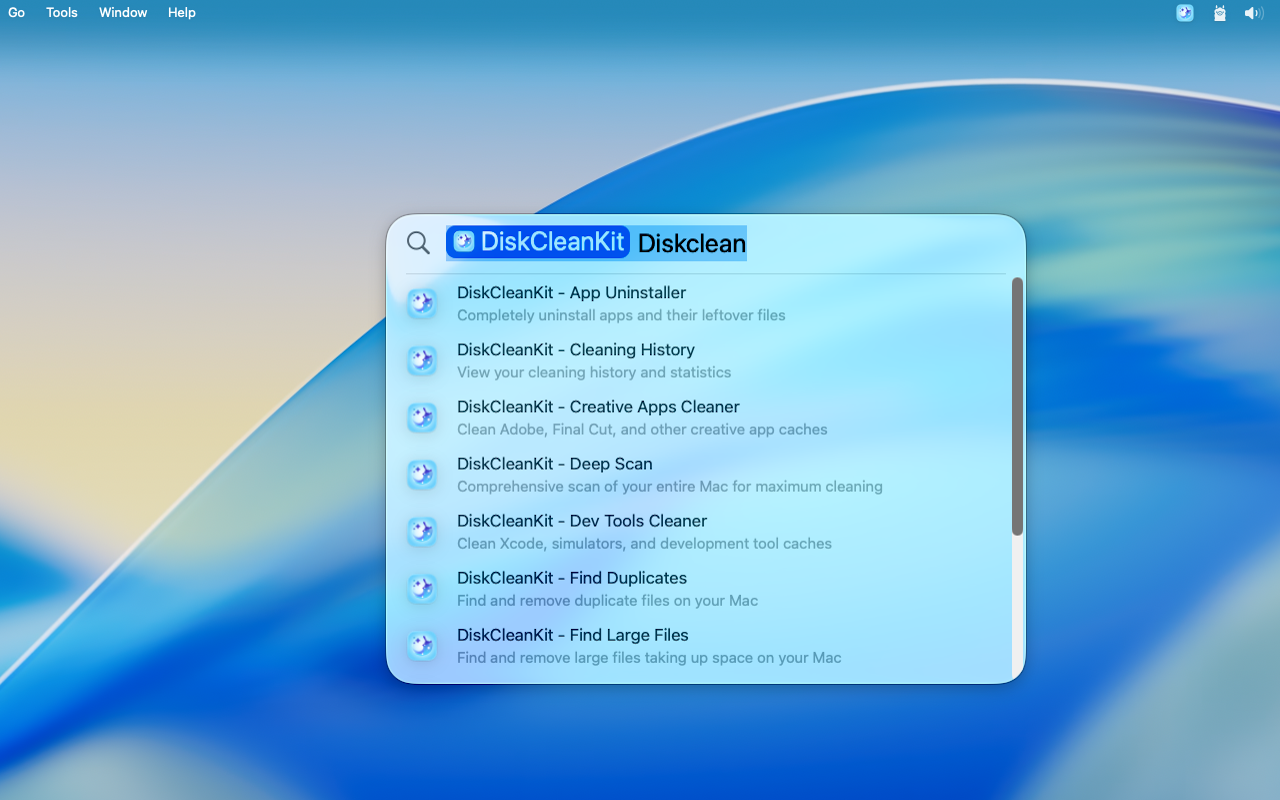
How to Access Spotlight
There are several ways to open Spotlight:
| Method | How to Use |
|---|---|
| Keyboard Shortcut | Press Command (⌘) + Space |
| Menu Bar | Click the magnifying glass icon in the menu bar |
| Touch Bar | Tap the Spotlight icon (on MacBooks with Touch Bar) |
Essential Spotlight Features
1. Find Files & Folders Instantly
Simply type the name of any file or folder. Spotlight searches:
- File names
- File contents (documents, PDFs)
- Metadata and tags
Pro Tips:
- Use quotes for exact matches:
"project report" - Filter by type:
kind:pdf budget - Search by date:
created:yesterday
2. Launch Applications
Type the first few letters of any app name and press Enter. It's often faster than navigating to the Applications folder or using the Dock.
Examples:
- Type
saf→ Launch Safari - Type
ter→ Launch Terminal - Type
disk→ Launch DiskCleanKit
3. Quick Calculations
Turn Spotlight into an instant calculator:
145 * 23→ Shows result immediately$150 in euros→ Currency conversion5 miles in km→ Unit conversionsin(45)→ Trigonometric functions
4. Dictionary & Definitions
Look up any word instantly:
- Type a word to see its definition
- Works with multiple languages
- Shows synonyms and usage examples
5. Web & Wikipedia Search
- Type any query and press Command + B to search in browser
- Wikipedia entries appear directly in results
- Maps and location information integrated
Advanced Spotlight Search Operators
Master these operators to find files like a pro:
| Operator | Example | Description |
|---|---|---|
kind: | kind:image sunset | Filter by file type |
date: | date:today | Files from specific date |
created: | created:this week | Filter by creation date |
modified: | modified:yesterday | Filter by modification date |
author: | author:john | Filter by document author |
name: | name:report | Search only in file names |
Combining Operators
Combine operators for precise searches:
kind:pdf created:this month budgetThis finds all PDF files created this month containing "budget".
Spotlight Preferences
Customize what Spotlight searches:
1. Open System Settings → Siri & Spotlight
2. Scroll to Spotlight section
3. Toggle categories on/off:
- Applications
- Documents
- Folders
- Mail & Messages
- Movies & Music
- And more...
Privacy Settings
Exclude folders from Spotlight:
1. Go to System Settings → Siri & Spotlight
2. Click Spotlight Privacy
3. Add folders you want to exclude
Siri on Mac
Siri brings voice-powered assistance to your Mac, perfect for hands-free control and quick actions.
Activating Siri
| Method | How to Use |
|---|---|
| Keyboard | Hold Command + Space (or set custom shortcut) |
| Menu Bar | Click the Siri icon |
| Voice | Say "Hey Siri" (on supported Macs) |
What Siri Can Do on Mac
#### 1. System Controls
- "Turn on Dark Mode"
- "Increase brightness"
- "Turn off Wi-Fi"
- "Empty the Trash"
#### 2. File Management
- "Show my downloads from today"
- "Find PDFs I opened last week"
- "Open my Documents folder"
#### 3. Application Control
- "Open Safari"
- "Quit all applications"
- "Take a screenshot"
#### 4. Information Queries
- "What's the weather today?"
- "How much storage do I have left?"
- "What's on my calendar tomorrow?"
#### 5. Messages & Communication
- "Send a message to John"
- "Read my latest email"
- "FaceTime Mom"
Siri Shortcuts Integration
Create custom Siri Shortcuts for complex workflows:
1. Open Shortcuts app
2. Create a new shortcut
3. Add your desired actions
4. Give it a Siri-friendly name
5. Run it by saying "Hey Siri, [shortcut name]"
Example Shortcut Ideas:
- "Clean my Mac" → Opens DiskCleanKit and starts One-Touch scan
- "Morning briefing" → Reads calendar and weather
- "Work mode" → Opens work apps, enables Do Not Disturb
Spotlight + Siri: Power User Tips
1. Quick Look Preview
In Spotlight results, select any file and press Space to preview without opening.
2. Reveal in Finder
Press Command + Enter on any Spotlight result to reveal it in Finder.
3. Drag & Drop
Drag items directly from Spotlight results to other applications or folders.
4. Natural Language Search
Both Spotlight and Siri understand natural language:
- "Photos from last Christmas"
- "Documents I worked on yesterday"
- "Emails from Sarah about the project"
5. Siri Results to Notification Center
Pin Siri results to Notification Center for quick reference:
- Click the + button on Siri results
- Access them anytime in Notification Center
Troubleshooting
Spotlight Not Finding Files
1. Rebuild Spotlight Index:
- Open Terminal
- Run:
sudo mdutil -E / - Wait for reindexing to complete
2. Check Privacy Settings:
- Ensure the folder isn't excluded in Spotlight Privacy
3. Restart Spotlight:
sudo killall mdsSiri Not Responding
1. Check that Siri is enabled in System Settings
2. Verify microphone permissions
3. Test your microphone in another app
4. Reset Siri: Toggle off and on in System Settings
System Requirements
Spotlight
- Available on all macOS versions
- Works best with SSD storage for fast indexing
Siri
- macOS Sierra (10.12) or later
- "Hey Siri" requires: 2018 MacBook Pro/Air or later, or iMac Pro
---
Coming Soon: DiskCleanKit's upcoming version will feature Spotlight integration, letting you search for cleanup actions, storage insights, and app data directly from Spotlight — plus Siri Shortcuts support for voice-activated Mac cleaning!
Ready to Clean Your Mac?
Try DiskCleanKit today and reclaim your disk space. One Touch Clean, Widgets, Disk Manager, and more.